Tech tip: iOS 27 overhauls Screen Time controls and adds several practical features
September 24th, 2026
Tech tip: iOS 27 overhauls Screen Time controls and adds several practical features
🇺🇸 English
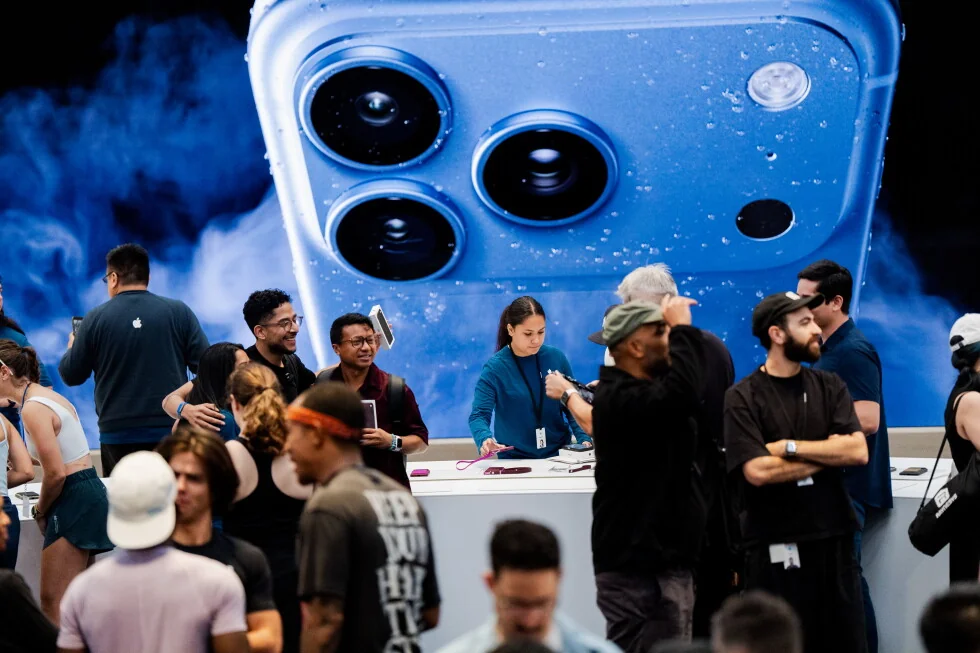
蘋果上週推出其最新的行動作業系統更新 iOS 27,主打功能為更先進版本的 Siri 助理。
然而,此次更新亦為 iPhone 使用者帶來一系列其他實用卻較不為人知的功能。
這項軟體升級適用於可追溯至 2019 年 iPhone 11 的裝置,涵蓋多項改良與改進,藉此提升運作效能,例如加快應用程式的載入速度。
部分嶄新功能係由 Apple Intelligence 所驅動,惟僅相容於較近期嘅裝置,並以 iPhone 16、iPhone 15 Pro 及 iPhone 15 Pro Max 機型為起始支援範圍。
全新嘅 Siri AI 應用程式起初僅以 beta 版本形式提供,意味住使用者必須透過設定選單加入候補名單方可使用。
此外,Siri AI 喺歐洲聯盟嘅推出將會有所延遲,原因在於該集團嘅數位規則引發咗衝突。
以下為 iOS 27 若干最實用且饒富趣味的功能:
本文係美聯社「Be Well」系列報導之一部分,該系列深入探討健康、健身、飲食與心理健康等多元議題。
欲閱覽更多 Be Well 相關內容,請參見後續報導。
蘋果為其裝置引入了兒童安全功能,並對螢幕使用時間控制進行了全面革新。
這套新系統針對試圖管控孩子於裝置上得以存取及瀏覽哪些內容的家長,增設了更為精細的控制選項。
新的設定流程讓家長先選擇孩子可以存取哪些應用程式,然後再逐步增加更多。
一項名為「要求瀏覽」(Ask to Browse)的新功能規定,孩童若要在 Safari 中存取新網站,必須先向家長請求許可。
與既有的「購買前詢問」設定用於線上購買與下載一樣,「要求瀏覽」對 13 歲以下兒童預設為開啟。
家長可以在自己的訊息中評估並批准請求,或使用自己的密碼直接在孩子的裝置上進行。
這比逐一預先批准網站或全面禁止更容易且更有彈性。
全面革新的螢幕使用時間控制功能,讓家長得以依據應用程式類別——諸如娛樂、遊戲或社群媒體——來安排孩子何時可以使用各類應用程式。
為協助孩子專注,家長可允許特定類型的應用程式僅於一天之中的特定「時間窗口」內使用,例如上學前、上學期間或放學後。
他們亦可設定平日與週末兩套不同的時間表。
在此之前,家長僅能針對螢幕「停用時間」設定較為概括的每日時間限制。
當家長希望孩子全神貫注時,例如晚餐時間,可以完全暫停對裝置的所有存取。
反向操作也適用,如果孩子需要更多時間完成時間窗口之外的事情,家長可以暫時取消所有限制。
蘋果亦收緊了其「通訊安全」功能的限制;該功能原本會封鎖在 Messages 或 FaceTime 中分享的影像和影片裡的裸露內容,如今也會封鎖「血腥或暴力」內容。
請務必留意,這些家長控制功能若要正常運作,所有裝置均須更新至 iOS 27,或 iPad、MacBook 與 Apple Watch 的對應版本。
您是否希望對某個購物網站進行密切關注,以確保您心儀的那雙鞋在特價時能夠及時獲悉?
蘋果的 Safari 瀏覽器如今具備監控網頁之功能,並能於網頁出現任何變更時通知使用者。
該公司表示,「通知我」(Notify Me)功能可供使用者偵測網頁是否出現任何更新,諸如「價格變動和商品供應情況」。
若要啟用此功能,請開啟 Safari 並前往你想監控的網站。
隨後,點擊螢幕底部的三線選單圖示。
將選單向下捲動至「通知我」,屆時你便可輸入欲尋找的變更,以及指定應於何時檢查、以何種頻率檢查——每小時、每天、每週或每月。
我於某新聞網站的 AI 專區實測了這項功能,要求它每小時執行一次檢查,並在發布新報導時通知我。
我固然收到了有新標題出現的警示,然而它並未指明在隨機排列的文章之中,究竟哪一篇才是新增的。
儘管這項功能著實便利,部分使用者仍可能感到失望,因為當他們正等待重要內容時,該功能無法以更高的頻率進行檢查,例如每隔幾分鐘便檢查一次。
你在婚宴上拍的那張團體照,日後勢必會被珍藏多年,惟其拍攝角度略顯怪異。
當然可以,只需運用其中一款嶄新的 AI 驅動照片編輯工具加以修正即可。
這些新興工具能讓你重新調整照片的視角、移除任何干擾視線的物件以淨化畫面,抑或將背景延伸至照片邊界之外。
若要尋得這些工具,請輕觸每張照片底部的編輯圖示——該圖示以三條滑桿表示——隨後點選「工具」。
我藉由重新調整一張我其中一個孩子開學第一天站在前門外的照片,來試用這些工具。
該工具僅花了幾秒鐘便分析了照片,隨後讓我得以從一側到另一側或上下移動視角。
結果相當逼真。
然而,當我針對同一張照片套用延伸工具時,其結果卻顯得遜色許多——甚至帶有幾分詭異。
最顯著的問題是什麼?
它在門的右側添加了一個亂碼的門牌號碼——其中還包含一個虛構的字元——以對應左側的門牌號碼。
此外,原照片中幾乎無法辨識的一根黑色電線導管明顯變大,而一個瓦斯表箱也被過度延伸。
客觀而言,對於大多數背景條件相對平庸的照片,它仍能展現相當理想的成效。
你認為有哪些科技主題需要進一步闡釋?
若有任何見解,歡迎來信至 [email protected],就未來「一項科技小提示」的版本提供你的建議。
September 24th, 2026
Trending Articles
Organization claims Serbian principal's phone was infected with spyware during student protests
組織稱塞爾維亞校長手機在學生抗議期間遭間諜軟體感染
Organization claims Serbian principal's phone was infected with spyware during student protests
組織稱塞爾維亞校長手機在學生抗議期間遭間諜軟體感染
US retailers adopt AI pricing tools as consumer concerns grow
美國零售商採用人工智慧定價工具,消費者憂慮日增
US retailers adopt AI pricing tools as consumer concerns grow
美國零售商採用人工智慧定價工具,消費者憂慮日增
China restricts exports of technologies such as AI on national security risk grounds
中國以國家安全風險為由限制AI等技術出口
China restricts exports of technologies such as AI on national security risk grounds
中國以國家安全風險為由限制AI等技術出口
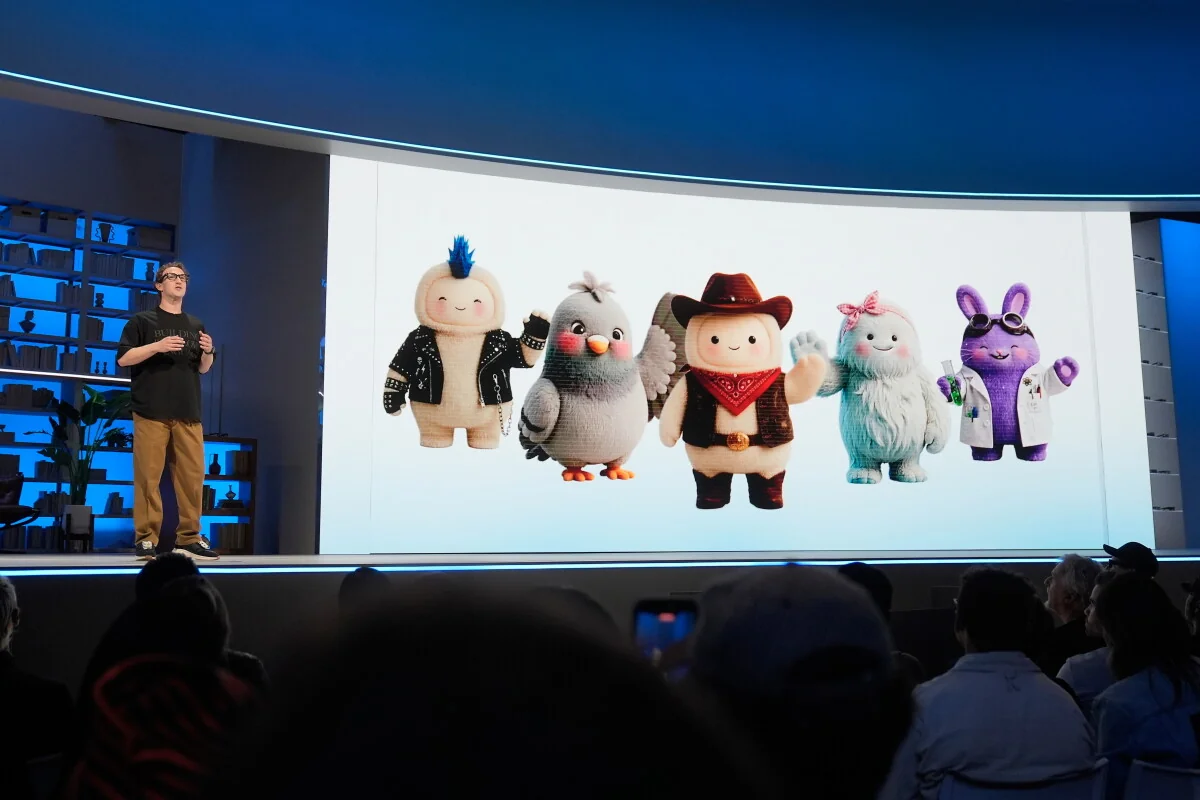
The performance of AI agents depends on the personal information you share, raising privacy concerns.
AI代理的表現取決於你分享的個人資訊,引發隱私疑慮
The performance of AI agents depends on the personal information you share, raising privacy concerns.
AI代理的表現取決於你分享的個人資訊,引發隱私疑慮

Trump says Russia and Ukraine agree to 'energy ceasefire' but Kyiv says attacks continue
特朗普稱俄烏同意「能源停火」但基輔稱攻擊持續
Trump says Russia and Ukraine agree to 'energy ceasefire' but Kyiv says attacks continue
特朗普稱俄烏同意「能源停火」但基輔稱攻擊持續
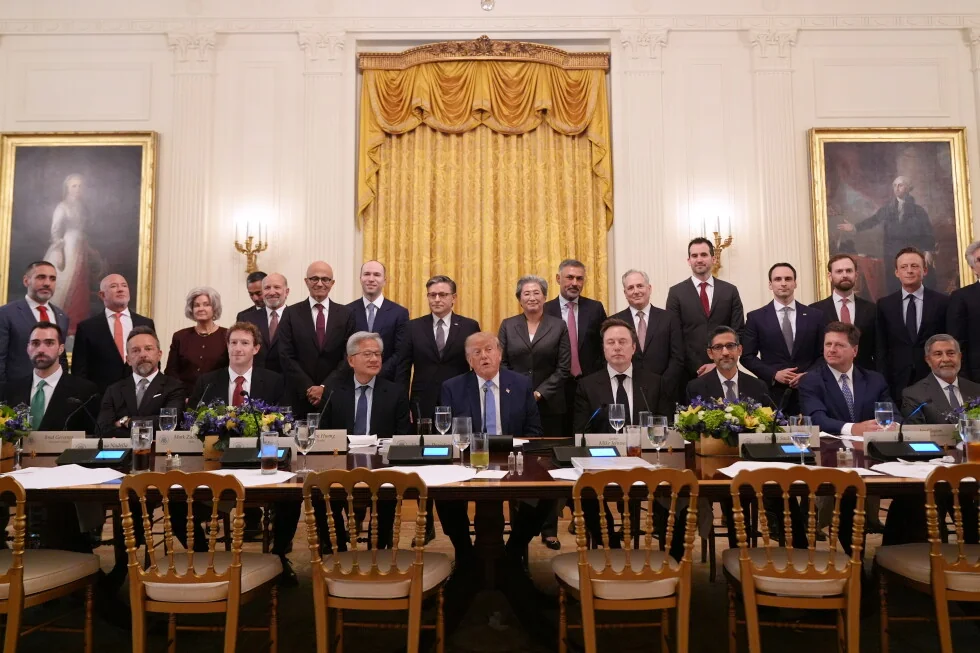
Silicon Valley AI founders welcome Trump's call for the industry to self-regulate on safety.
矽谷AI創辦人歡迎川普籲業界自我監管安全
Silicon Valley AI founders welcome Trump's call for the industry to self-regulate on safety.
矽谷AI創辦人歡迎川普籲業界自我監管安全
Anthropic's Claude AI provides false leads in a Philadelphia cold case.
Anthropic的Claude AI就費城懸案提供虛假線索
Anthropic's Claude AI provides false leads in a Philadelphia cold case.
Anthropic的Claude AI就費城懸案提供虛假線索
After the Hugging Face attack: A timeline of AI safety development
Hugging Face 遭攻擊後:人工智慧安全發展時間軸
After the Hugging Face attack: A timeline of AI safety development
Hugging Face 遭攻擊後:人工智慧安全發展時間軸
Robert F. Kennedy Jr.'s Embrace of AI Leaves MAHA Allies and Medical Experts Perplexed
小羅伯特·甘迺迪擁抱AI 引發MAHA盟友與醫學專家困惑
Robert F. Kennedy Jr.'s Embrace of AI Leaves MAHA Allies and Medical Experts Perplexed
小羅伯特·甘迺迪擁抱AI 引發MAHA盟友與醫學專家困惑
McDonald's sued by U.S. franchisees over AI-powered pricing recommendation tool
麥當勞因AI推薦價格工具遭美國加盟商起訴
McDonald's sued by U.S. franchisees over AI-powered pricing recommendation tool
麥當勞因AI推薦價格工具遭美國加盟商起訴